If you aren’t using Instagram, you’re missing one of the lowest hanging fruits that can help with your online reputation.
Google almost anyone—if they have an Instagram account—you’re going to see it on the first page of their search results.
Even if you don’t want to use it, claiming it and optimizing it will help you begin to bury negative Google links.
In this post, I’m going to show you how to claim and optimize your Instagram account in five minutes.
Here we go.
8 Steps To Claim And Optimize Your Instagram Account
For this tutorial, I’m setting up a brand new Instagram account on a desktop computer.
It’s easier for me to mark up these images and teach you how to do it on my desk 🙂
You can do it on mobile if you want.
Step #1 – Create An Instagram Account
If you already have Instagram, skip ahead to Step 3 to optimize your username.
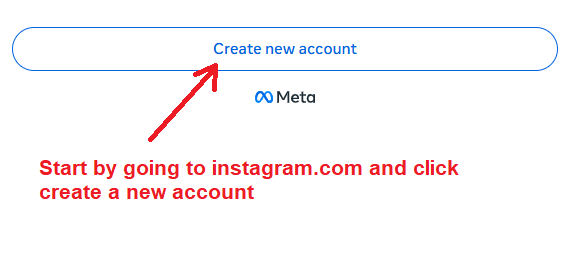
So, begin by going to instagram.com and click Create new account.
Step #2 – Get Started on Instagram
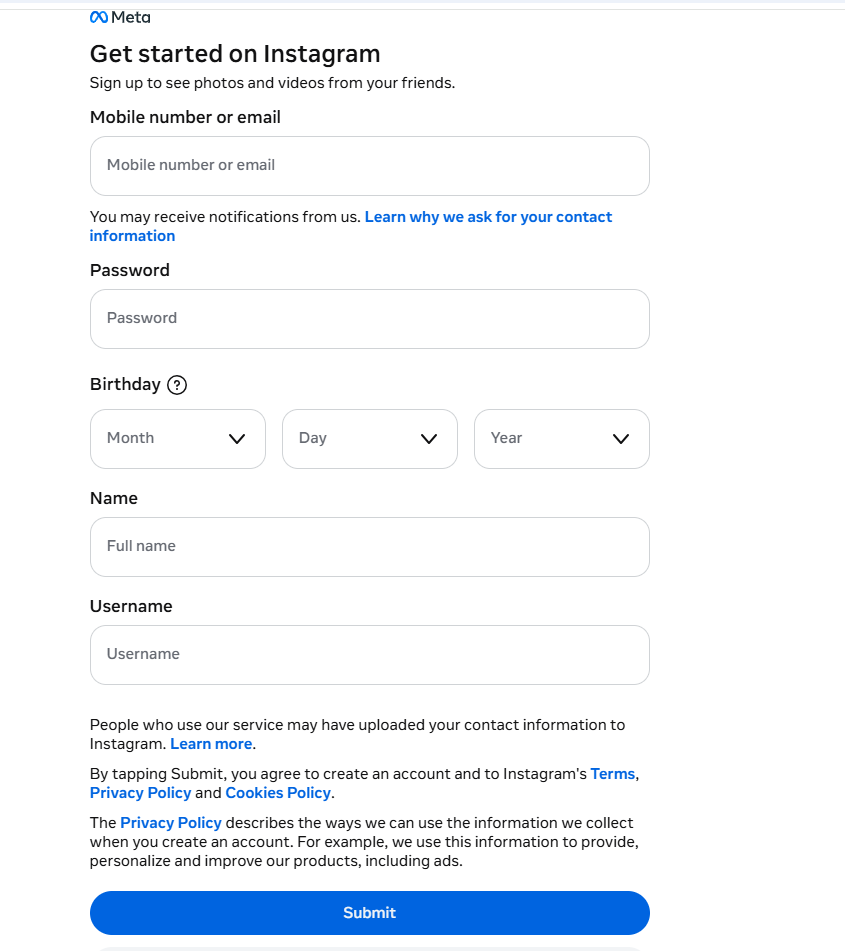
This is what you’ll see next.
Use either your mobile number or email and fill in the rest of the fields.
Step #3 – Optimize Your Username
NOTE: If you already have an Instagram account and it’s not ranking for your name in Google, you can change it every 14 days. Follow my advice below to pick a better version that will rank better when you Google yourself. Then skip to Step 5.
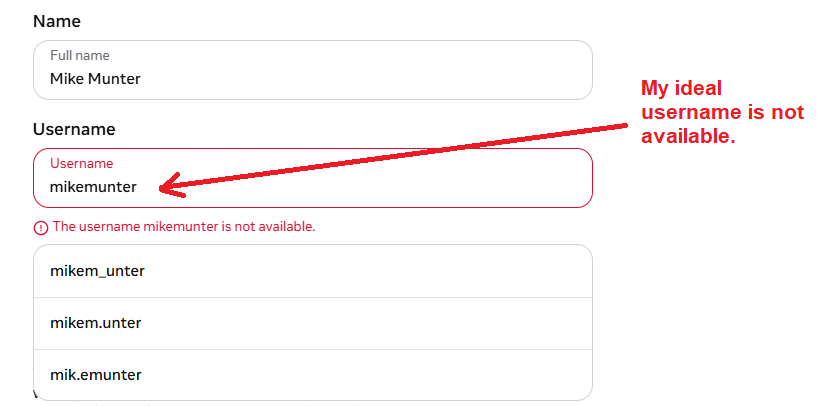
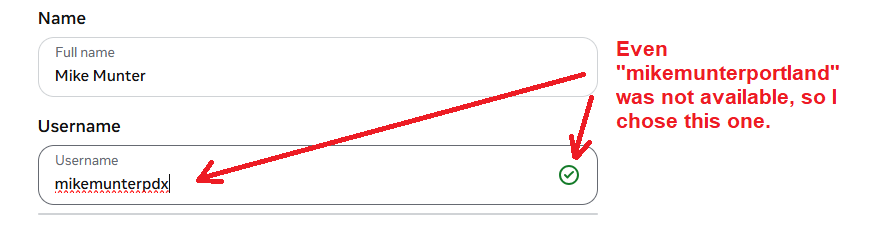
I hit a minor road block—my ideal username is already taken.
I could have selected one of the 3 options Instagram selected, but I prefer to have my full name mikemunter be a contiguous word in my account.
I think that’ll be better for it to rank when people Google me.
So, I decided to go with mikemunterpdx because my friends know I live in Portland now.
Mikemunterportland was not available, either, so I just took the abbreviated version of the city.
For you, I think your best bet is to have your name be exactly in order of how people know you and then append a word like your city or something that would help your friends identify you.
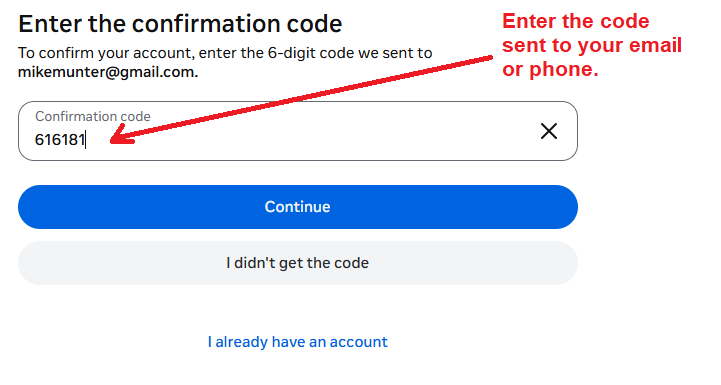
Step #4 – Enter The Confirmation Code
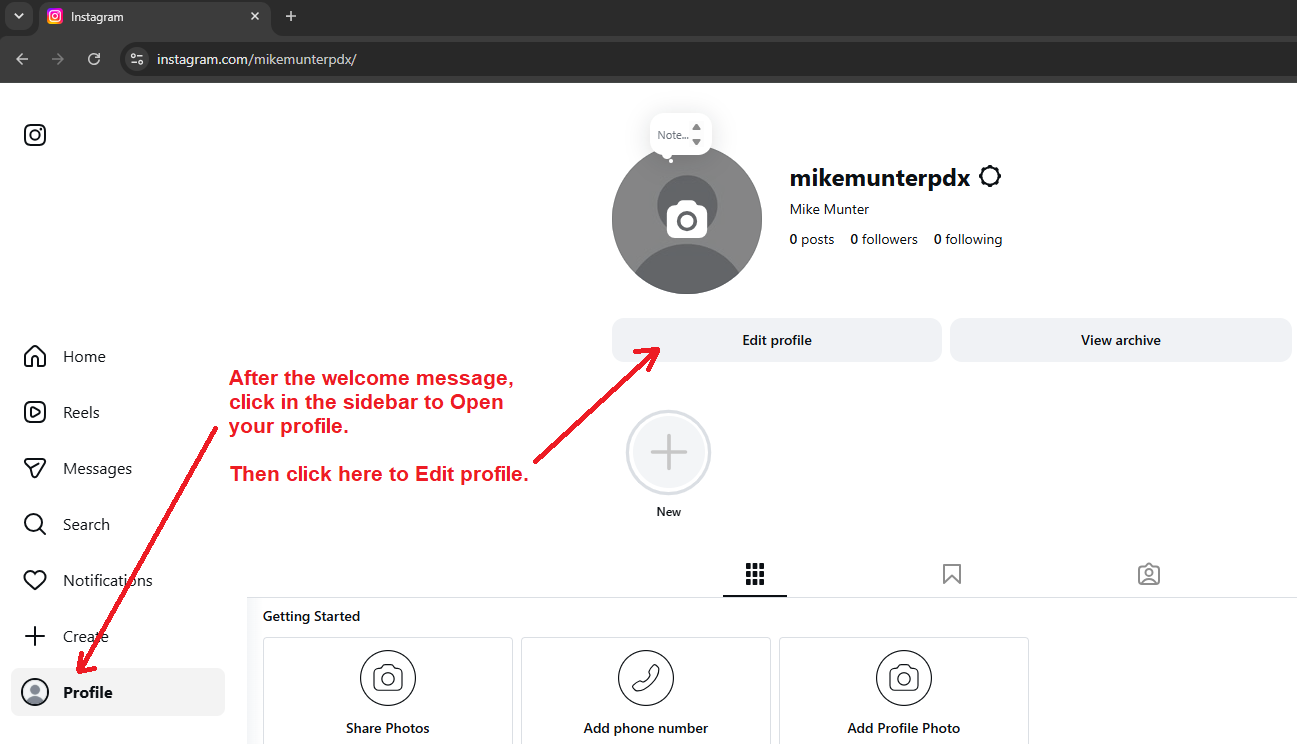
Step # 5 – Edit Your Profile
If you already have an Instagram account, follow the rest of these steps to ensure it’s well-optimized for search engines.
On your desktop, click the little head in the left sidebar.
Then click the Edit profile button.
Step #6 – Optimize Your Profile
Now, the fun part.
This is where you optimize your Instagram profile.
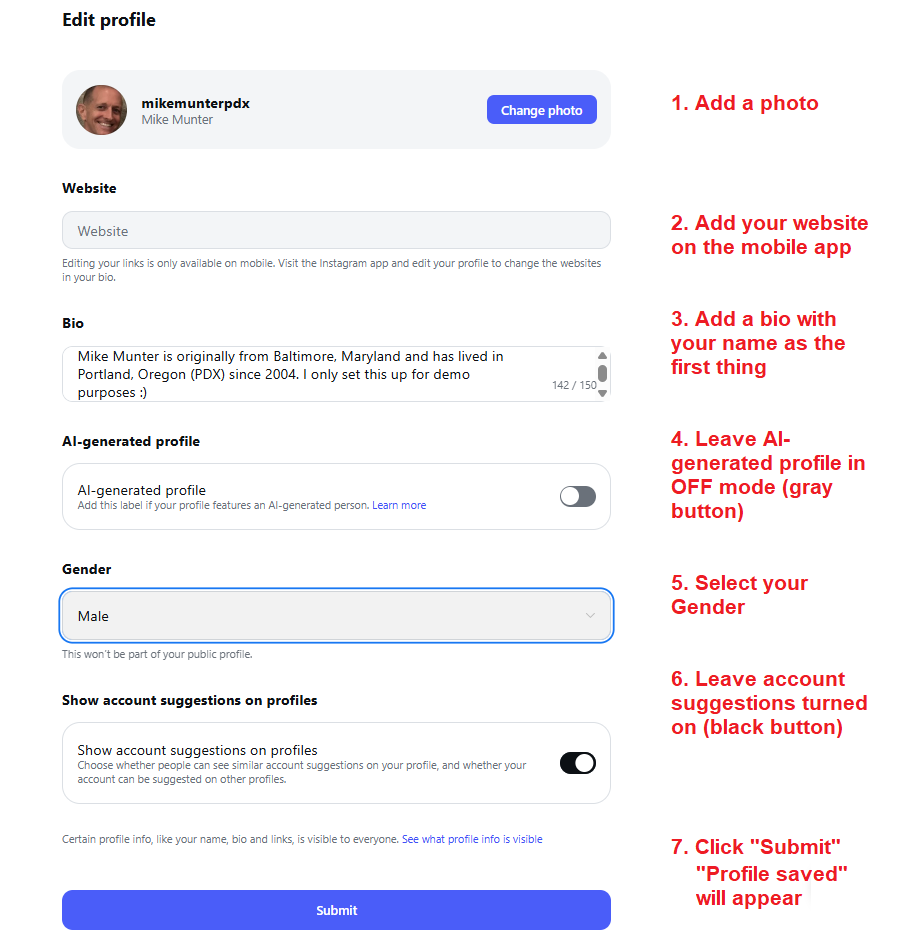
Fill in all of the fields as indicated in the image below.
Photo. Make sure you add a recent profile so people recognize you.
Website. You’ll need to do this on the mobile app. I recommend putting your exact-match domain, partial-match domain, or the link to the page about you on a business domain where you work.
Bio. Write in 3rd person and put your name first. Use as many of the 150 characters as you can.
AI-generated profile. Leave in the default OFF position, with the lever ticked to the left.
Gender. Pick one.
Show account suggestions on profiles. Leave this in the default ON position, with the lever ticked to the right.
After you tap the blue Submit button, you’ll see a Profile saved message.
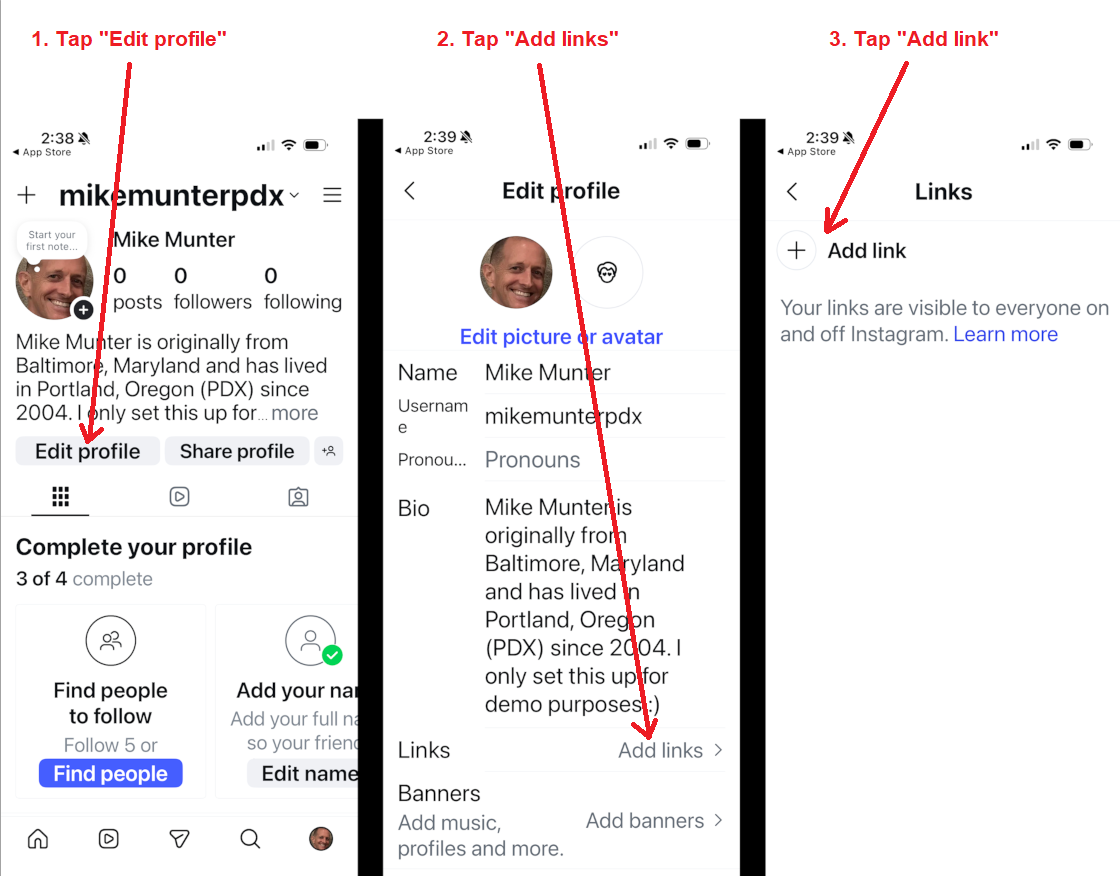
#7 – Add Your Website On The Mobile App
I guess it would have been easier had I just done this whole procedure on mobile, but alas, here we are.
I installed the mobile app, logged in, then I tapped on my face in the lower right hand corner of my iPhone screen.
(I skipped all the prompts to share my contact list, follow people, like stuff, blah blah. I’m only doing this for demonstration purposes. I don’t like social media and will not be using Instagram beyond this tutorial.)
- Tap the Edit profile button
- Tap Add links
- Tap Add link
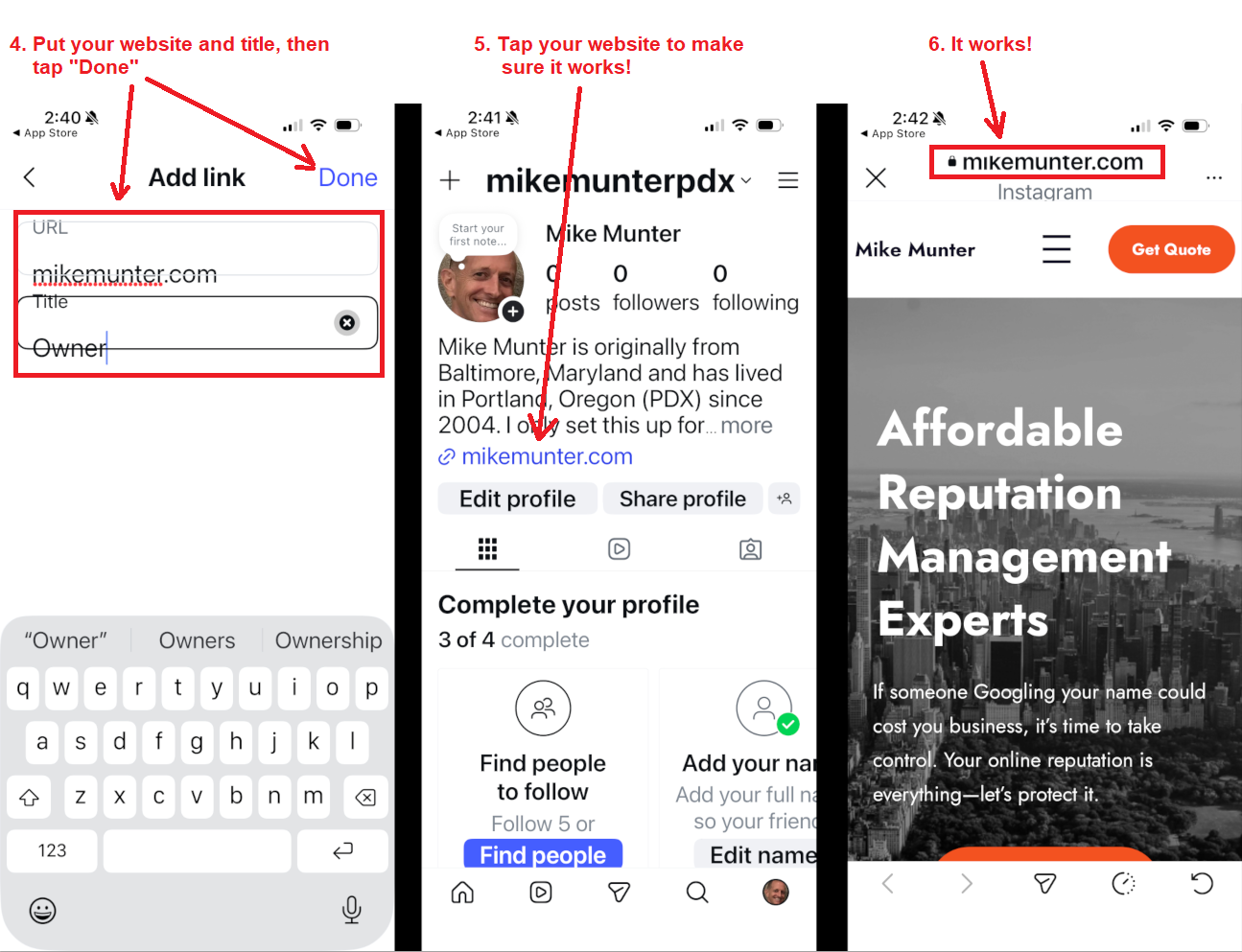
- Add your website in the URL box and then fill in your Title
- Tape the blue link for your website to make sure you did it right
- Verify your website link on the screen
#8 – Next Steps
There actually are no next steps.
I’m not going to suggest you put anymore work into this—no following people, posting, nothing.
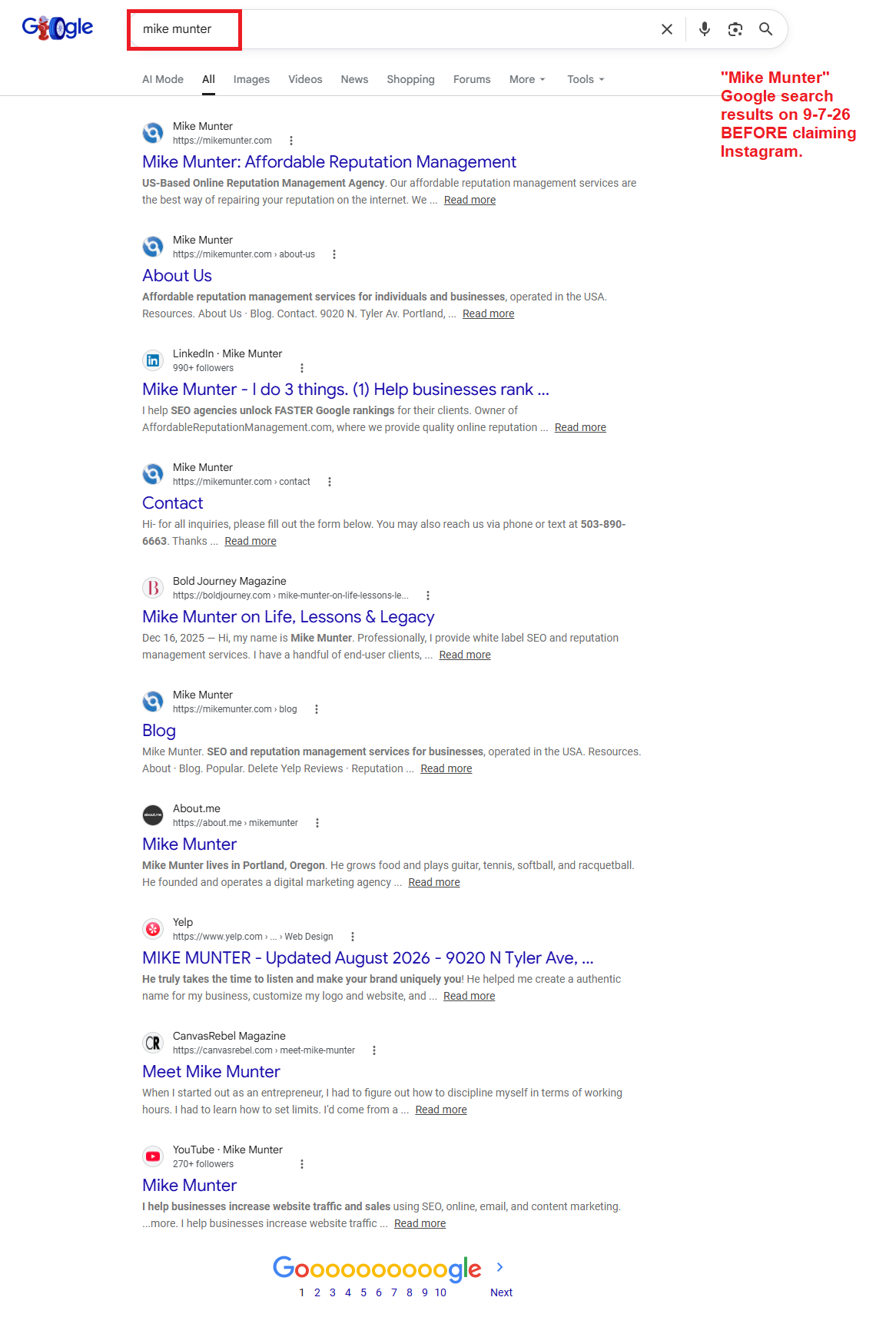
I do not intend to use my personal Instagram account at all; I just want to see if claiming it and optimizing it will cause it to appear in the top 10 search results of Google.
I claimed the account on September 7, 2026.
I’ve made a note to check back in 2 weeks to see where it ranks.
Here’s the BEFORE Google search results for Mike Munter.
Summary
Along with LinkedIn, Facebook, and YouTube, Instagram is one of the social media heavy hitters.
Whether you plan to use Instagram or not is up to you.
But if you want an easy win to help bury negative links about you on Google, then take five minutes to setup your Instagram profile.
At worst, you’ll get an easy link to your website.
At best, it’ll pop straight into the top 10 and push down the bad stuff.
We insist that all of our clients get an Instagram account—it’s just too easy to pass up.
If you need help with any aspect of your individual or small business reputation, we are the best reputation management agency you’re going to find for what we charge.
Reach out for a consult if you’re interested.